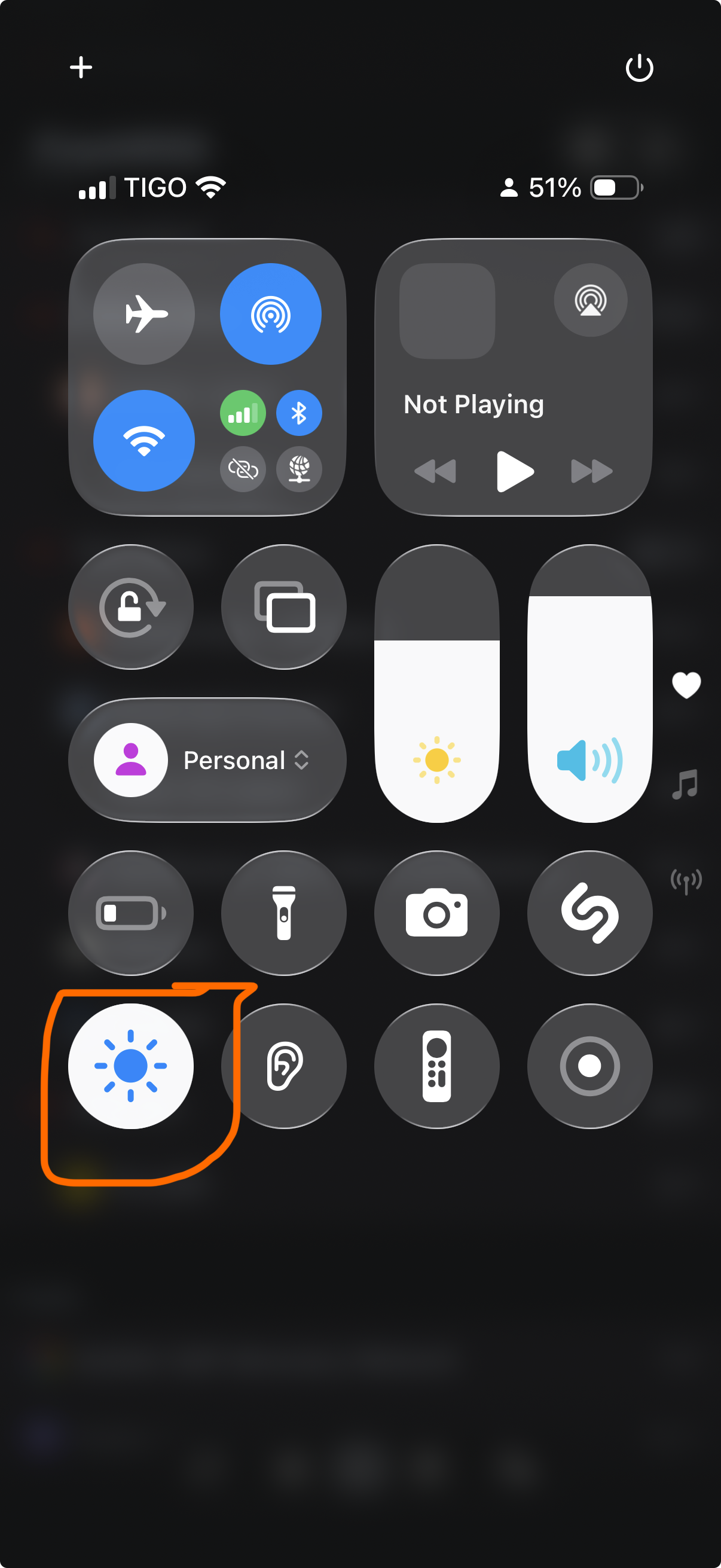
Adding the “reduce white point” accessibility setting on iOS into Control Center is one of the best things I’ve done on my phone in a while.
-
Adding the “reduce white point” accessibility setting on iOS into Control Center is one of the best things I’ve done on my phone in a while.
Helps tone down screen brightness at night - way more comfy on the eyes

-
Adding the “reduce white point” accessibility setting on iOS into Control Center is one of the best things I’ve done on my phone in a while.
Helps tone down screen brightness at night - way more comfy on the eyes
@josh Ohhhhh thank you for this
-
@josh Ohhhhh thank you for this
@neurovagrant @josh consider setting it to the accessibility shortcut option as well. It’s deep in the menu, but you can triple click the side button to turn it on or off. (Or get a menu of accessibility options to toggle on or off)
-
@neurovagrant @josh consider setting it to the accessibility shortcut option as well. It’s deep in the menu, but you can triple click the side button to turn it on or off. (Or get a menu of accessibility options to toggle on or off)
@scottswezey @neurovagrant ooh, that could be handy!

-
Adding the “reduce white point” accessibility setting on iOS into Control Center is one of the best things I’ve done on my phone in a while.
Helps tone down screen brightness at night - way more comfy on the eyes
@josh @neurovagrant excellent tip. I have this exact accessibility setting assigned to triple click of the action button so I can toggle it on and off with ease.
-
R relay@relay.infosec.exchange shared this topic